'%20fill='url(%23cc-green)'%20stroke='url(%23cc-green)'%3e%3cpath%20d='M60%20102h44l70%20112'%20fill='none'%20stroke-width='38'%20stroke-linecap='round'%20stroke-linejoin='round'/%3e%3crect%20x='142'%20y='128'%20width='328'%20height='212'%20rx='76'%20stroke='none'/%3e%3cpath%20d='M388%20300l62-24%202%2072z'%20stroke-width='20'%20stroke-linejoin='round'/%3e%3ccircle%20cx='222'%20cy='410'%20r='32'%20stroke='none'/%3e%3ccircle%20cx='372'%20cy='410'%20r='32'%20stroke='none'/%3e%3c/g%3e%3c/svg%3e) ChatCart
ChatCart
Use ChatCart
Branding your store
Each store has its own brand. Changes show on the next page load, with no rebuild. Select the store in the store switcher first.
Store name
Settings, General, Store name. It appears in the header (when there is no logo), in page titles and in the WhatsApp message.
Color, corner radius, logo and favicon
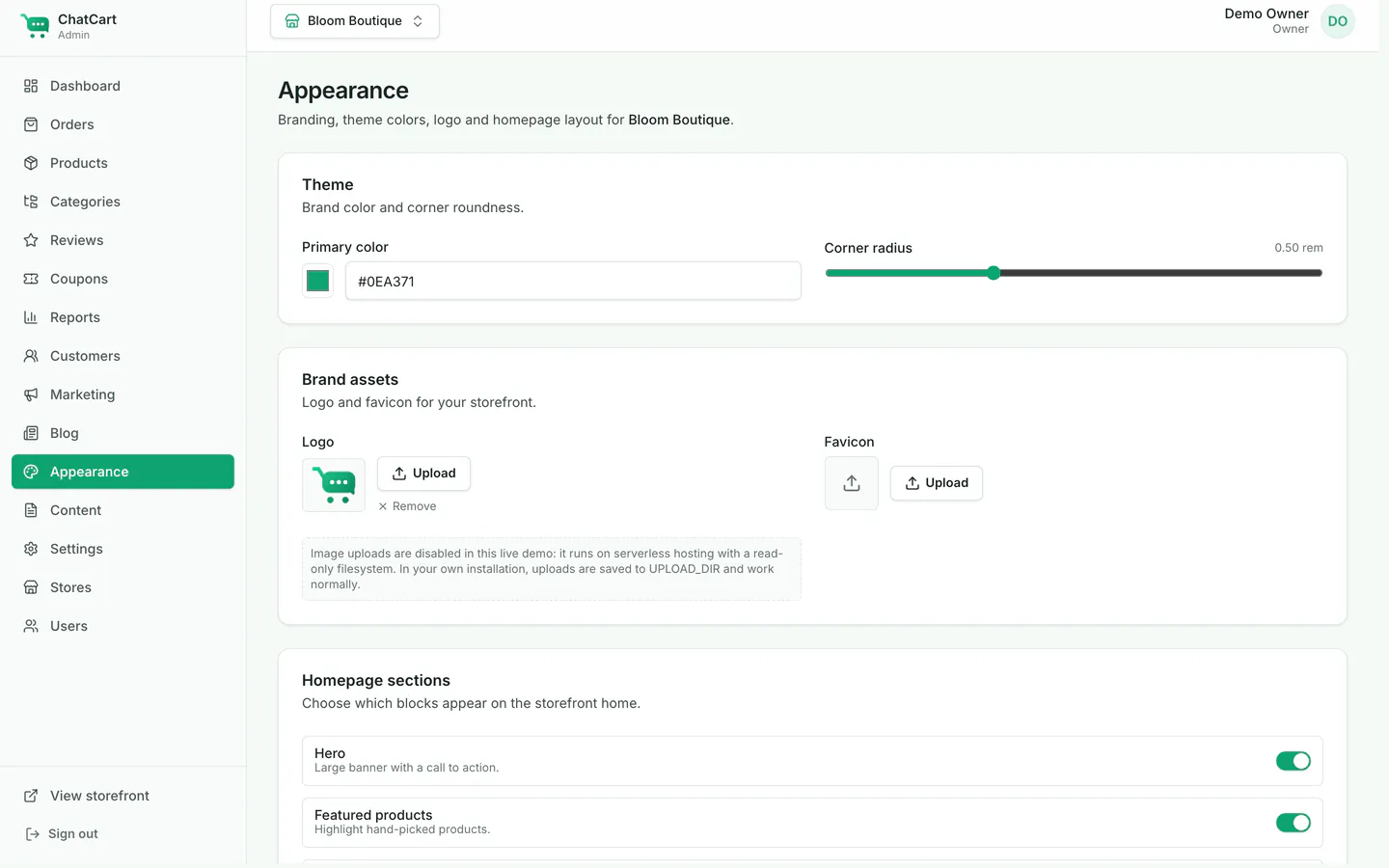
Open Appearance.
-
Primary color: pick a color or type a hex code like
#0EA371. Buttons, links, badges and focus rings use it. Text on it turns white or dark by itself, so it stays readable. - Corner radius: from square (0) to very round (1.5 rem). Every rounded corner of the storefront follows it.
- Logo: click Upload. A wide PNG or WebP with a transparent background works best. It replaces the store name in the header.
- Favicon: the small icon in the browser tab. Use a square PNG, at least 64 x 64 pixels. SVG is not accepted (for security).
- Homepage sections: simple on and off switches for the home page. For full control, use the Home page builder below it.
Click Save at the bottom of the page. The admin keeps its own neutral look; only the storefront changes.
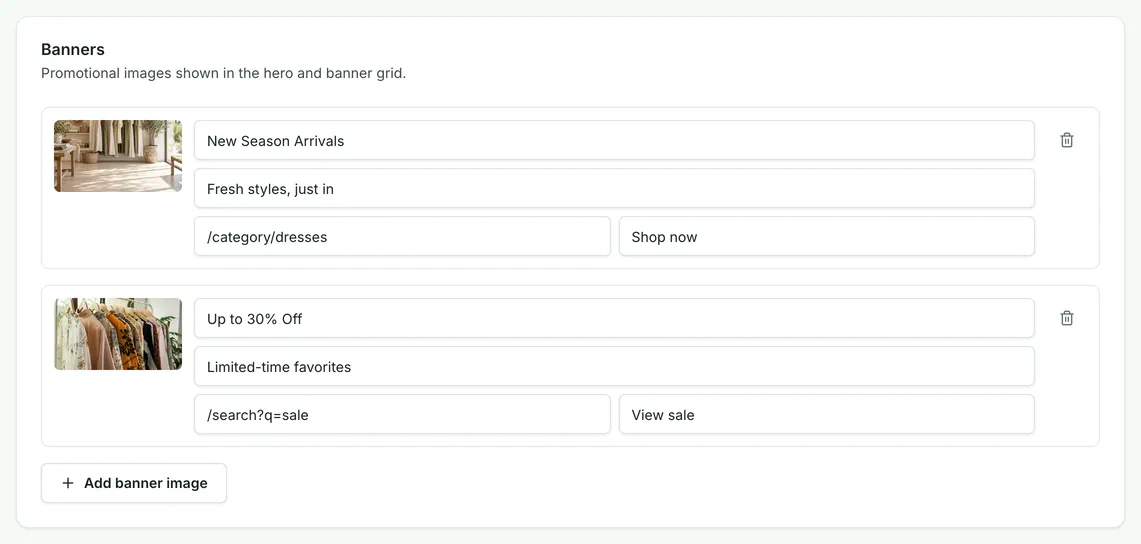
Banners
Further down on Appearance, Banners holds the images of the
hero and the banner sections. Each banner has a title, a subtitle, a link (like
/category/dresses) and a button label. Click Add banner image to
add one.
Announcement bar
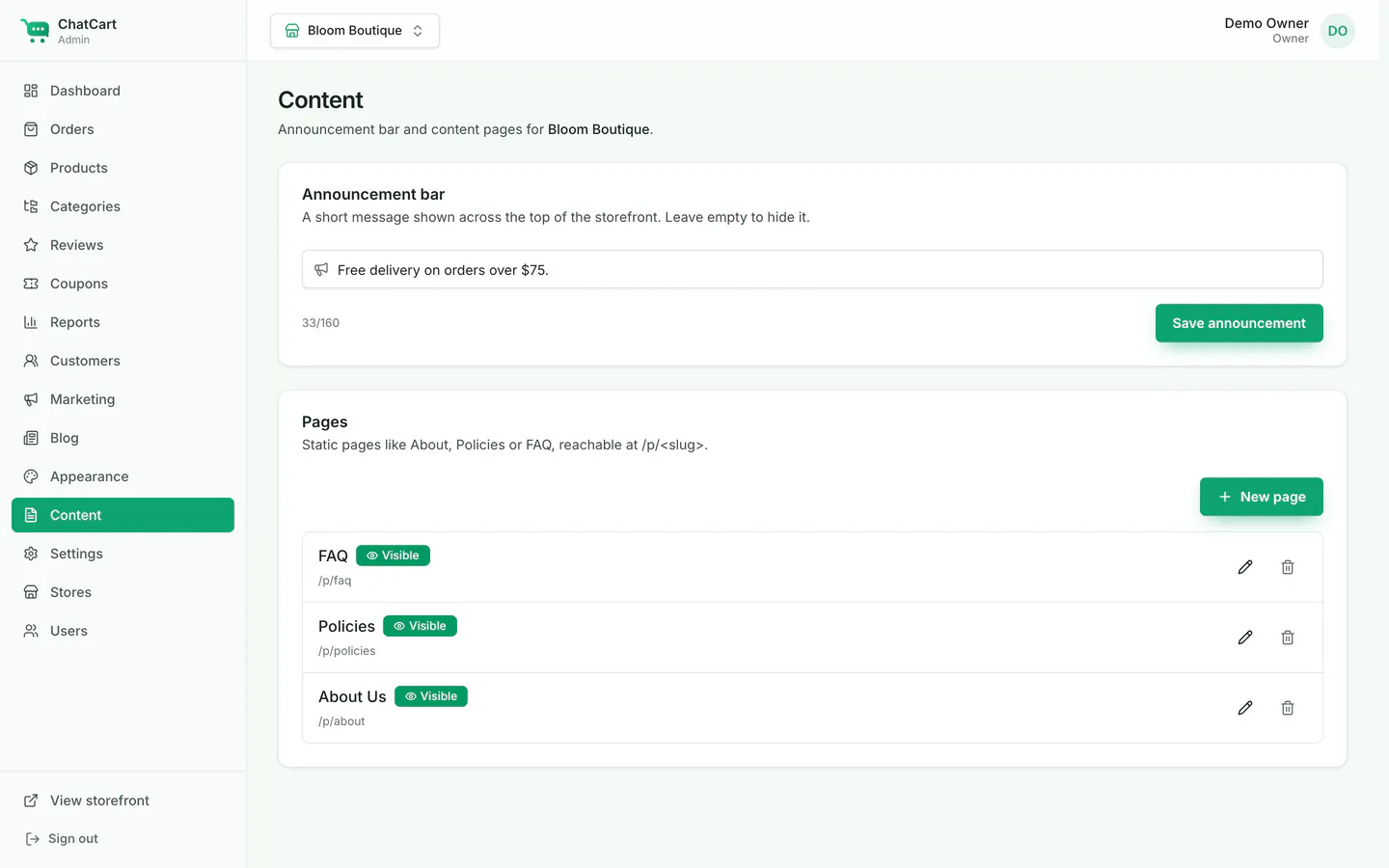
Open Content. Type a short message in Announcement bar (up to 160 characters), such as "Free delivery on orders over $75", and click Save announcement. It shows across the top of every storefront page. Leave it empty to hide it.
SEO and social sharing
Settings, General, SEO: the Meta title and
Meta description that search engines show, and a
Social share image URL (about 1200 x 630 pixels) for links shared on WhatsApp,
Facebook and others. Set APP_URL in .env.local to your real address,
so the sitemap uses the right links. The Google Analytics and Meta Pixel IDs are on the same
page.
Fonts
Fonts are not an admin setting. The storefront uses Inter for text and Instrument Serif for
headings. To change them, a developer edits app/layout.tsx,
components/storefront/chrome/storefront-shell.tsx and app/globals.css,
then runs npm run build.